One QR on the Car Key: Company Vehicle Logbooks, Done — SELLEASE October Update
2026-10-17
tony
At the end of every month, the same message shows up in the admin team's chat: "If you haven't turned in this month's company car logbook, please do it today." The paper logbook in the glove box has empty rows, and nobody quite remembers who drove when. So someone ends up rebuilding the spreadsheet from card statements and fuel receipts. 🤔
With the October 14 update, SELLEASE changes that routine. Employees scan the QR code on the car key with their phone and log the trip on the spot. This post walks through what changed and how to roll it out at your company.
1. 🚗 Why do vehicle logbooks always fall behind?
Logbooks fall behind not because people are careless, but because the moment of driving and the tool for recording it are far apart.
Paper logbooks: kept in the car, they get lost; kept in the office, nobody fills them in right after a trip.
Shared spreadsheets: you have to open a laptop after driving, and simultaneous edits break rows.
Pool cars: several people share one car, so the first question is always "who drove it last?"
Business vehicle costs are often justified with driving records, so missing entries mean extra checking at closing. The most accurate setup is one where the person who drove records it, right where they drive. 💡
2. 🏷️ Print a QR label and attach it to the car key
Getting started is simple. In the Corporate Vehicle list, an admin selects vehicles and clicks Print QR code to generate a label for each car.
Tangible Assets › Corporate Vehicle. Select vehicles and click Print QR code. Plates and users are sample values.
🖨️ Choose what goes on the label
Pick up to five fields to print, such as vehicle name, license plate and type, and reorder them.
Include or exclude your company logo.
Use Print preview / Save PDF or Download PNG image and print on label stock.
We recommend attaching the label to the car key or key holder. Nobody drives without picking up the key, so the QR is always in hand before a trip. 🔑
QR label dialog. Choose the fields and their order, then download as PDF or PNG.
3. 📱 Employees scan the QR and tap "Start Driving"
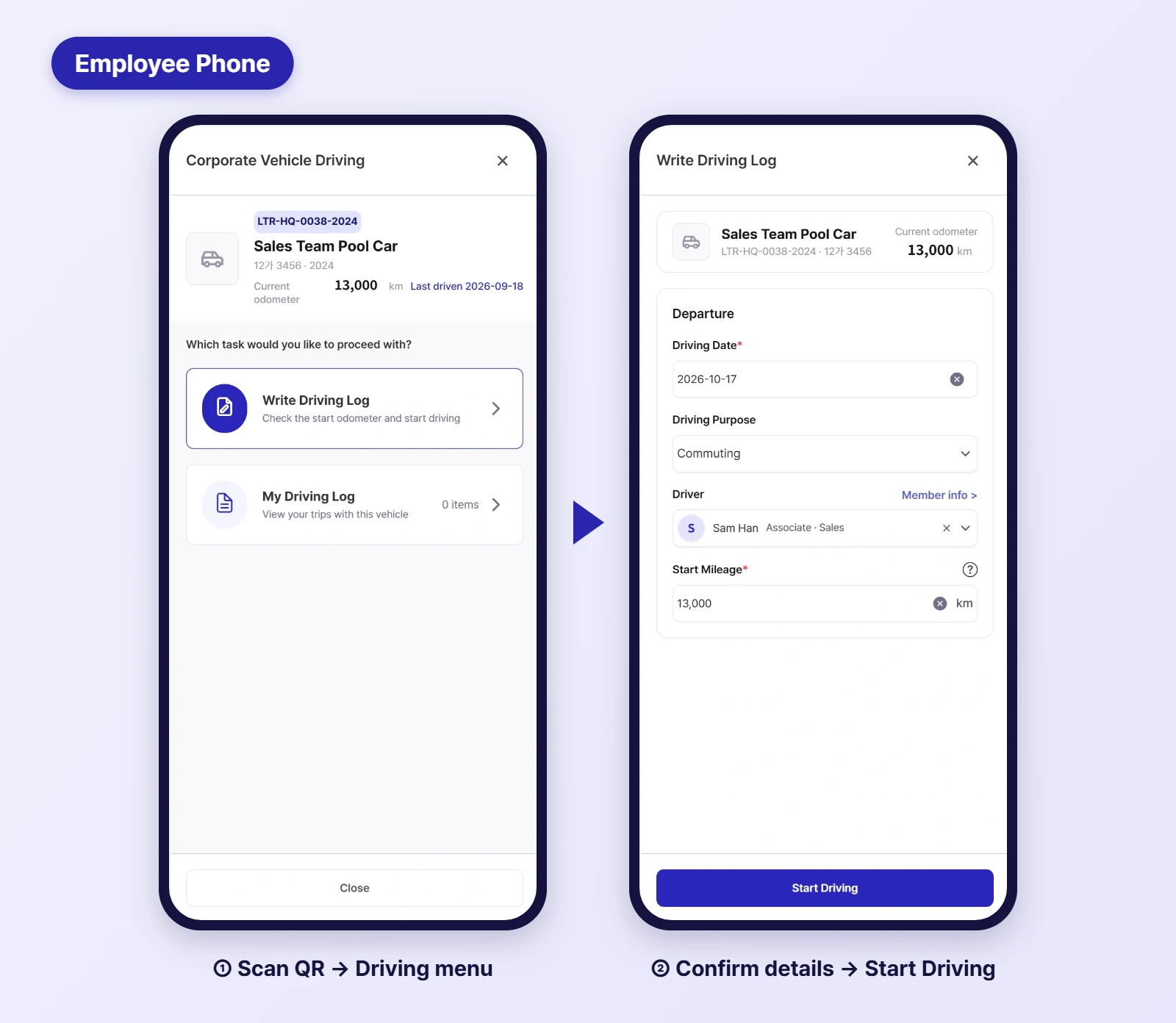
When an employee scans the key's QR with their phone camera, the Corporate Vehicle Driving screen opens. There's no app to install; it runs in the phone's web browser.
Employee phone screens. Scanning the QR opens the driving menu; in Write Driving Log, confirm the departure details and start the trip. Names are pseudonyms.
✍️ Write Driving Log: four things to confirm
Driving Date: today's date is filled in by default.
Driving Purpose: choose commuting or general business use.
Driver: the signed-in employee appears as the driver.
Start Mileage: the vehicle's current odometer is pre-filled, so just check it matches the dashboard.
Then tap Start Driving. From the same screen, My Driving Log shows every trip you've taken in that car. 👀
4. 🧾 Admins see every trip in the Driving History tab
Trips logged by employees land in Vehicle details › Driving History on the admin side. Driving date, driver, and start and end mileage sit in one table, with Total Mileage summed at the top.
Vehicle details › Driving History. Trips logged via QR and trips added by admins appear together. Names and distances are examples.
When an admin adds a trip on someone's behalf, the driver and the person who entered it are recorded separately.
Accumulated trips can be downloaded as a driving logbook spreadsheet for closing and documentation, including the Korean National Tax Service format.
The same vehicle page also tracks maintenance and insurance history, so each car's records live in one place.
Tax treatment of vehicle records varies by company, so confirm specifics with your tax advisor.
5. ✅ Four steps to roll it out
Check vehicle records: make sure every company car is registered. For many cars, upload them at once with a spreadsheet.
Print and attach labels: print a label per car and attach it to the key. Include the license plate so keys never get mixed up.
Tell employees: one line is enough: "When you use a company car, scan the QR on the key and log your trip." Share how to choose between commuting and business use, too.
Review at month-end: admins check the Driving History tab for gaps and download the logbook spreadsheet if needed.
No. SELLEASE runs as a mobile-optimized web app. Scanning the QR with the phone camera opens the driving screen directly in the browser.
Are trips kept separate when several people share a pool car?
Yes. Each trip records its driver, and admins can see who drove on each date in the Driving History tab. Employees see only their own trips in My Driving Log.
What if someone forgets to scan the QR?
Admins can add the trip directly in the vehicle's Driving History tab. The actual driver and the admin who entered it are recorded separately.
🌱 Swap the paper logbook for one QR on the key
Next month, nobody has to chase logbooks. Move your company car logs to SELLEASE. Contact SELLEASE 🚀