Upload Your Asset Spreadsheet As-Is and Let AI Register It — SELLEASE September 2026 Update
2026-10-03
tony
"Our old asset spreadsheet doesn't match a single column in the new system." That's what most admins say in their first week with a new asset management tool. "Asset No." has to become "Asset Code," "User Name" becomes "User," and every date gets reformatted by hand. Then comes the next chore: emailing every employee to confirm their assets, and counting in yet another spreadsheet who did and who didn't.
SELLEASE's late-September update focuses on cutting exactly that repetitive work. This post covers what changed and how to use it in practice, centered on AI Excel Asset Import (beta), more frequent employee self-audits, and personal-data protection settings. For the audit dashboard and hand-over features released in early September, see part 1 of the September update.
1. AI Excel Asset Import (beta): Upload the Spreadsheet You Already Use
Until now, you had to copy your data into the SELLEASE Excel template before uploading. Now you can upload the spreadsheet your company already uses, and AI reads the columns and suggests how they map to SELLEASE fields. If your file is already in the SELLEASE template, simply choose the template upload as before.
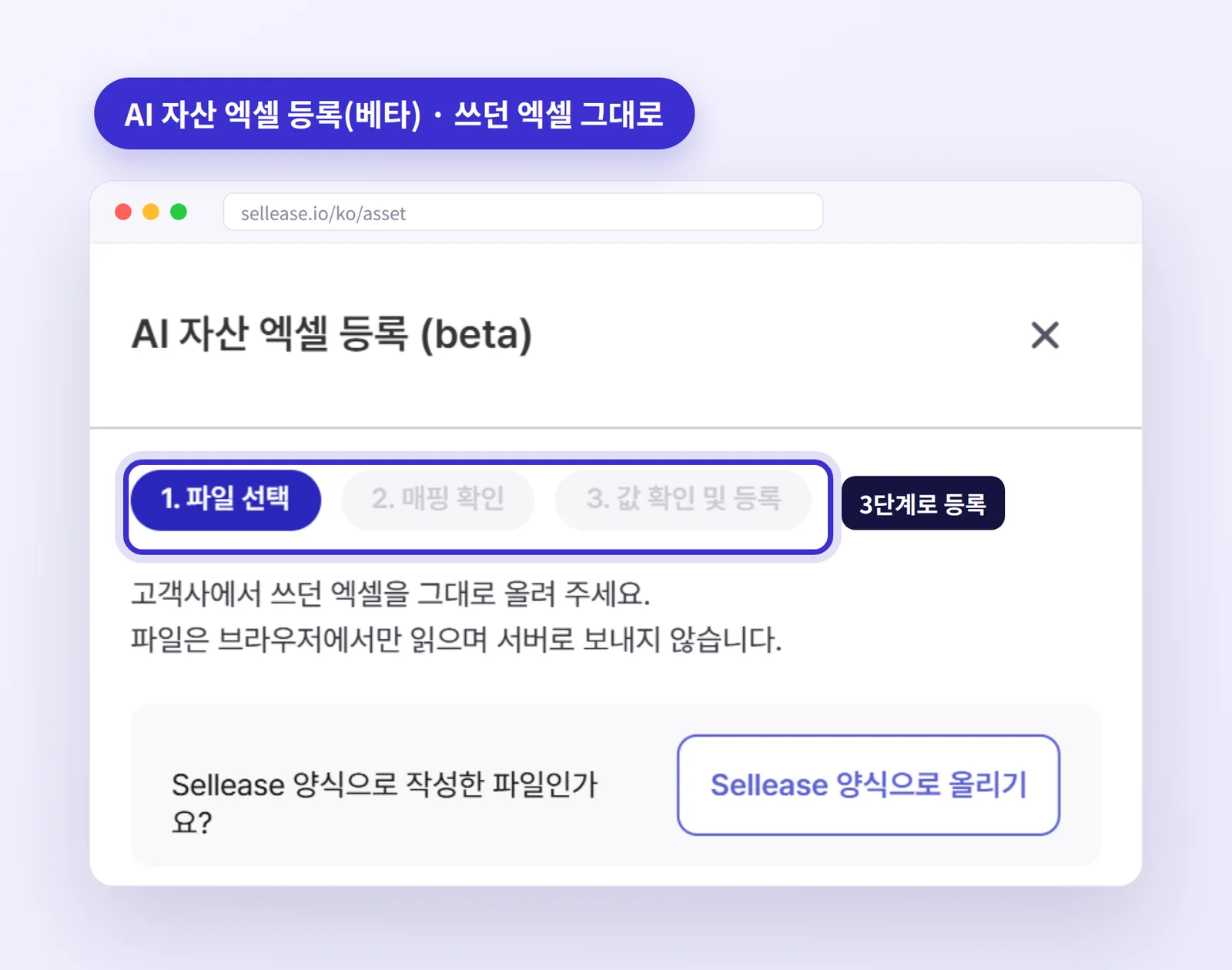
The first screen of AI Excel Asset Import (beta): select file → review mapping → check values and register. (Korean UI shown)
Import Takes Three Steps
Select file: Upload your existing asset spreadsheet. The screen notes that the file is read in your browser and is not sent to the server.
Review mapping: AI suggests column matches such as "Asset No. → Asset Code" or "Purchase Date → Acquisition Date." Fix any wrong match yourself.
Check values and register: Review values in a spreadsheet-like editor, look at flagged rows by reason, then register everything as fixed assets in one go.
No asset-name column? No problem. A late-September update added automatic name generation that combines other fields (e.g., type and model) when the name is empty.
Practical Tips
Clean up total rows, blank rows, and merged cells before uploading to improve mapping accuracy.
If a file is very large, split it by site or asset type. It's much easier to review that way.
As a beta feature, monthly usage is limited by plan. See the pricing page for details.
2. Employee Self-Audits, Now Monthly, Weekly, or Daily
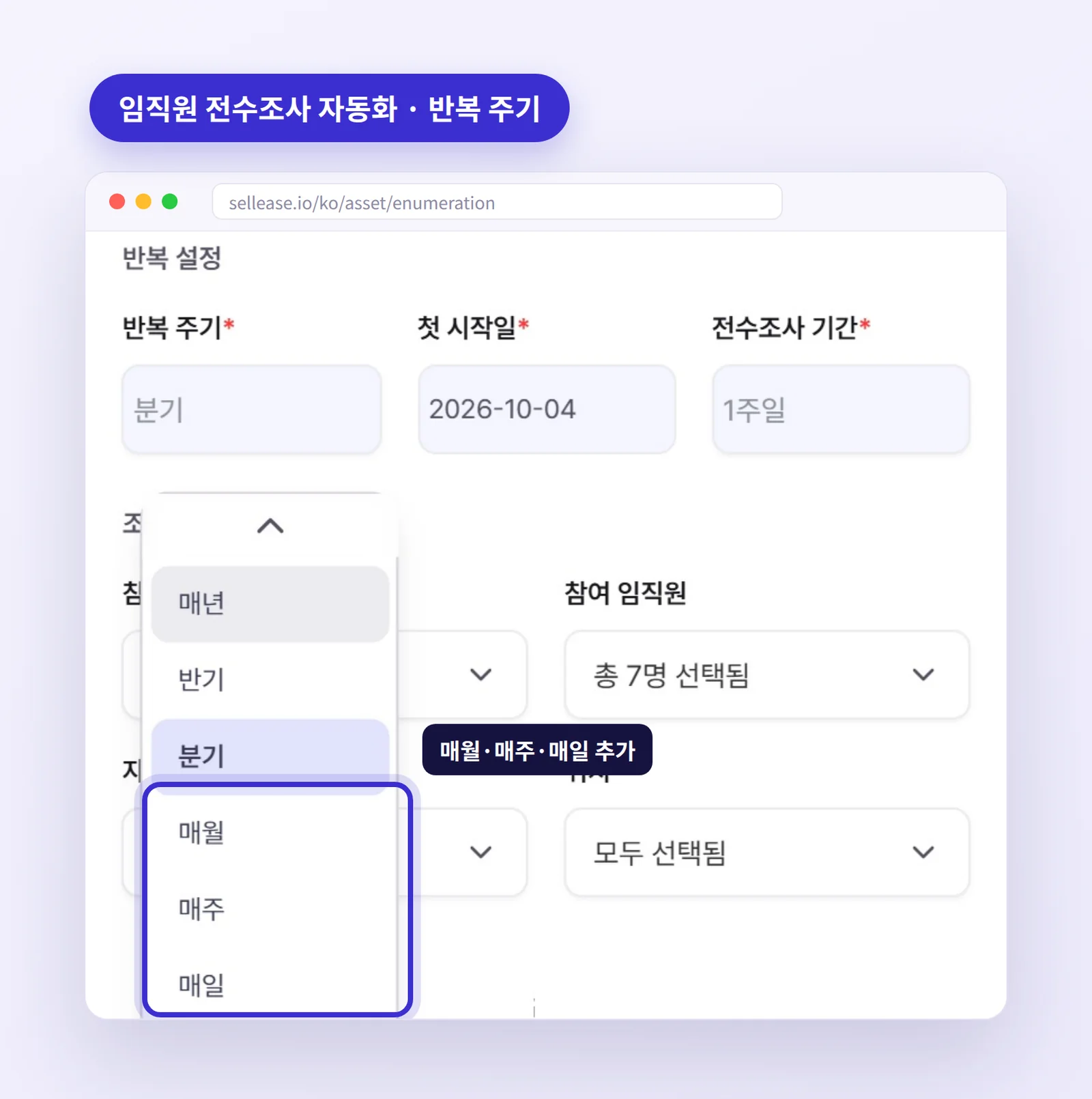
The Employee Audit, where employees confirm their own assets, could previously repeat automatically only yearly, semi-annually, or quarterly. This update adds monthly, weekly, and daily schedules.
Repeat schedule for Employee Audit automation: monthly, weekly, and daily join yearly, semi-annual, and quarterly. (Korean UI shown)
Monthly: Regular checks for teams with many loaner or shared devices, or organizations where equipment moves often
Weekly: Periods with lots of new hires and seat changes, or organizations that rotate project equipment
Daily: Event or field equipment that needs check-out and return confirmed every day
The shorter the cycle, the less you pile into a year-end crunch, and the shorter the window in which the ledger and reality drift apart.
Finer Progress Tracking
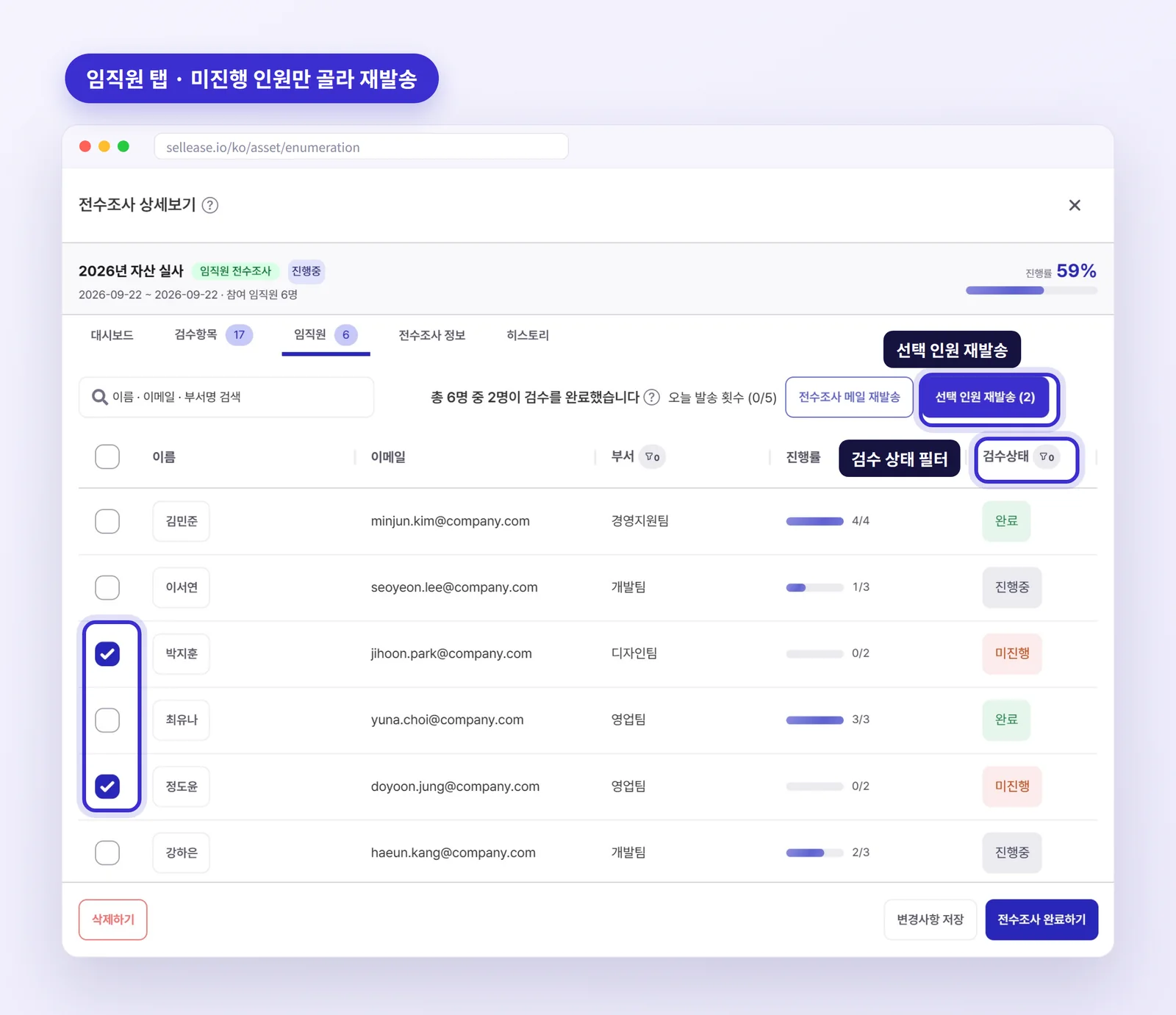
On the Employees tab, you can filter by review status (completed, in progress, not started).
You can resend the email only to people you select with checkboxes (Resend to selected), so people who already finished stop getting reminders.
The Review Items tab adds a Audit completed at column you can sort oldest or newest first, and you can show only items with review photos.
Selecting only people who haven't started and resending from the Employees tab. Names and emails are examples. (Korean UI shown)
3. Personal-Data Protection: Masking and Download Reasons
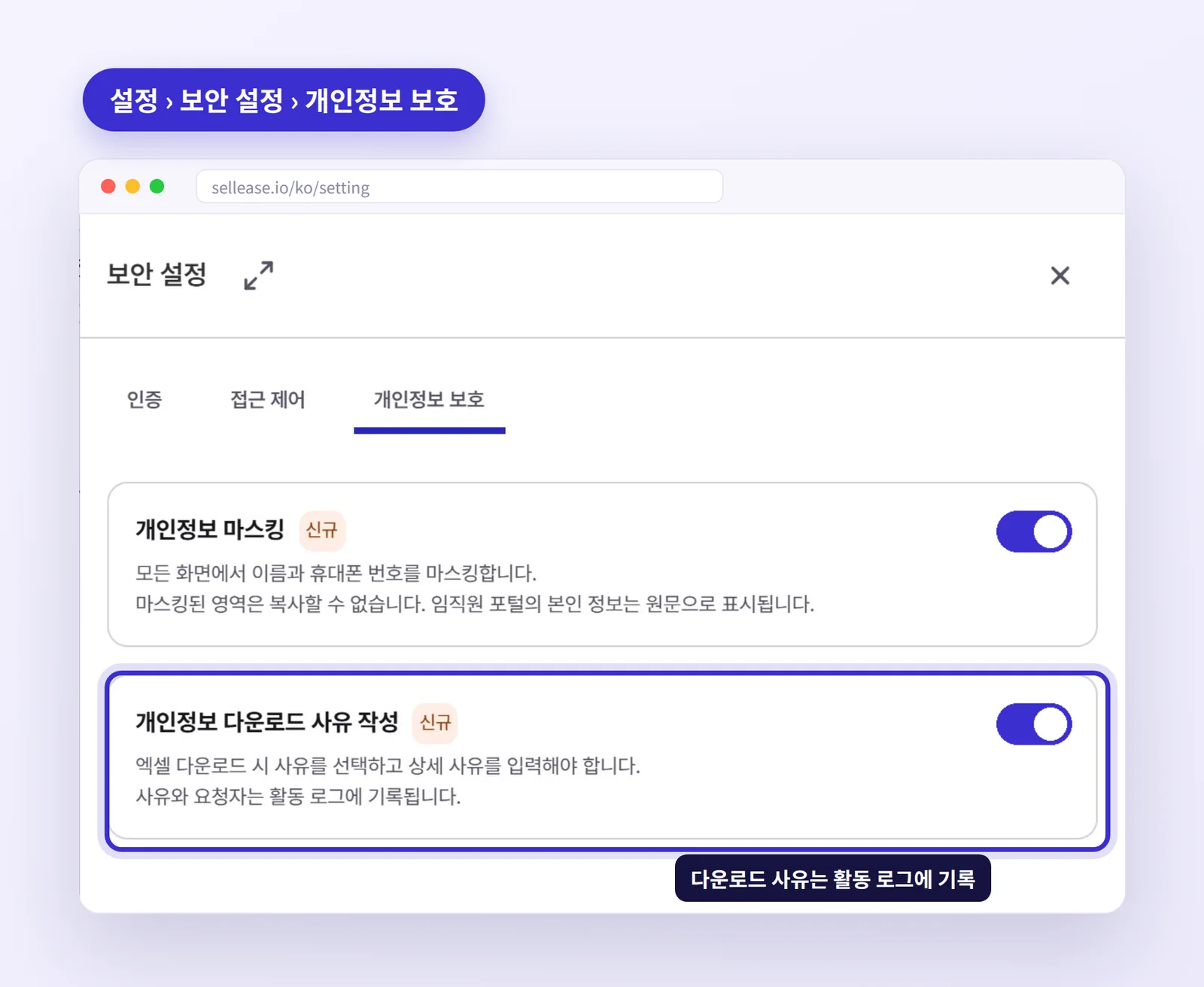
Asset and employee lists include personal data such as names, departments, and contact details. Once exported to Excel, that data leaves the system, so it matters to record who downloaded it and why. Under Settings > Security > Personal Data Protection, admins can turn on the following options.
Require a download reason: When on, users must enter a reason before downloading lists that contain personal data, and the reason and requester are recorded in the activity log.
Personal data masking: An option that hides personal data shown on screen.
The Security settings page also lets admins manage policies such as account lockout after failed logins in one place.
Settings › Security › Personal Data Protection. Download reasons and requesters are recorded in the activity log. (Korean UI shown)
When an internal audit or security review asks for a history of personal-data downloads, you can answer from the activity log without collecting records separately.
4. Other Improvements
Software Management
The Users and Installed Versions tabs in software details now show a departed (deleted) user icon, so you can spot licenses still assigned to people who have left.
The software list adds an Installed users column, so you can compare people who actually ran the software with the installed footprint.
Browser-based is now a run-OS type, so you can tell web-based software apart.
The Installed Versions, Users, and Fixed Assets tabs in software details can be exported to Excel, and you can enter purchase records for several license users at once.
Fixed Assets and Loaner Assets
Super admins can apply a custom fixed-asset list layout as the company-wide default, reducing confusion from every admin seeing a different layout.
Overdue loaner-return alerts can be sent to Slack.
Migrate your asset register: Start with the sites or asset types still living in spreadsheets and upload them with AI Excel import.
Set an audit cycle: Pick a cycle that fits your organization (monthly recommended) and turn on automation.
Follow up on stragglers: Filter by review status, select people who haven't started, and resend.
Check personal-data protection: Under Settings > Security > Personal Data Protection, turn on download reasons and masking, and review your account lockout policy.
Reclaim licenses from departed users: Find users with the departed icon in software details and clean them up.
FAQ
Q1. Can AI Excel import handle any spreadsheet?
Most standard table layouts work. Files with many total rows or merged cells may map incorrectly, so a quick clean-up before uploading is recommended. You always review the AI's suggested mapping and values yourself before anything is registered.
Q2. Won't a daily audit flood employees with email?
The daily cycle is meant for special cases with frequent check-outs and returns. For a typical office, monthly or quarterly is usually enough. Resend emails can go only to the incomplete people you select.
Q3. Where can I see download reasons?
When "Require a download reason" is on under Settings > Security > Personal Data Protection, the reason and requester are recorded in the activity log. Admins can see who downloaded which list, when, and why, which is useful for internal audits and security reviews.
Bring the asset spreadsheet you already have and upload it to SELLEASE today. Start for free